 InfoSol We're passionate about inspired business intelligence
Related Articles



Crystal Reports are very good for printable reports, but what if you don’t need every single field on the report? What If you had to dynamically change the report fields. This blog will help you in designing a crystal report with dynamic report fields.
Consider a crystal report with the following fields:
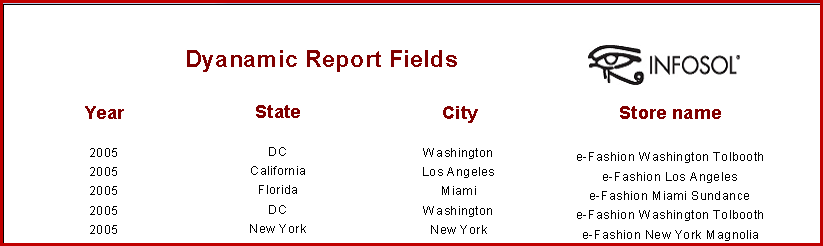
A user who wants to see only the Year, State & City fields needs to follow the steps below.
Step 1: Create the report and add the required fields to the report canvas
Step 2: Create a parameter which allows the user to select the fields that need to be displayed in the report. Make sure the setting “Allow Custom Values” is false and “Allow Multiple Values” is true

Step 3: Select the “Year” field and its corresponding header, right click on the selection and select “Format Objects”

Step 4: In the format editor dialog box select “Suppress” option and click the condition format [X-2] and insert the formula shown. As per the formula, the “Year” field will not be displayed when the selection parameter is not equal to “Year”
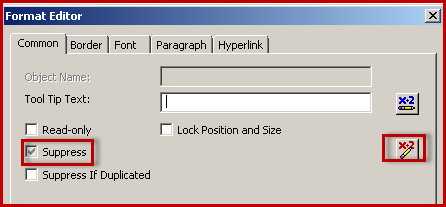

Step 5: Repeat the steps 3 and 4 for all the remaining fields – State, City & Store name with following formulas respectively
{?Select the Fields} <> ‘State’
{?Select the Fields} <> ‘City’
{?Select the Fields} <> ‘Store Name’
Step 6: Execute the report and select “Year”, “State” and “City” from “available values” and click “OK”

Voila! The report displays only the three fields which were selected.

There might be a user who is interested in “Year”, “City” & “Store Names”. In that case, the report looks as shown below.

Even though it shows “Year”, “City” & “Store Name”, there’s an empty space between Year & City. Want to know how to remove these annoying spaces that show up, when certain fields were not displayed? Stay tuned for part 2 of my blog that will cover just that!

